

Assigning & statuses
Assign snags to trades
Assigning snags to trades is a Premium feature. It helps you give the right work to the right people and group it when you share.
- 1
Add your assignees
Open Profile, then Assignees, to manage your team members and trades. Tap + to add a name and contact, or edit or remove someone already on the list.
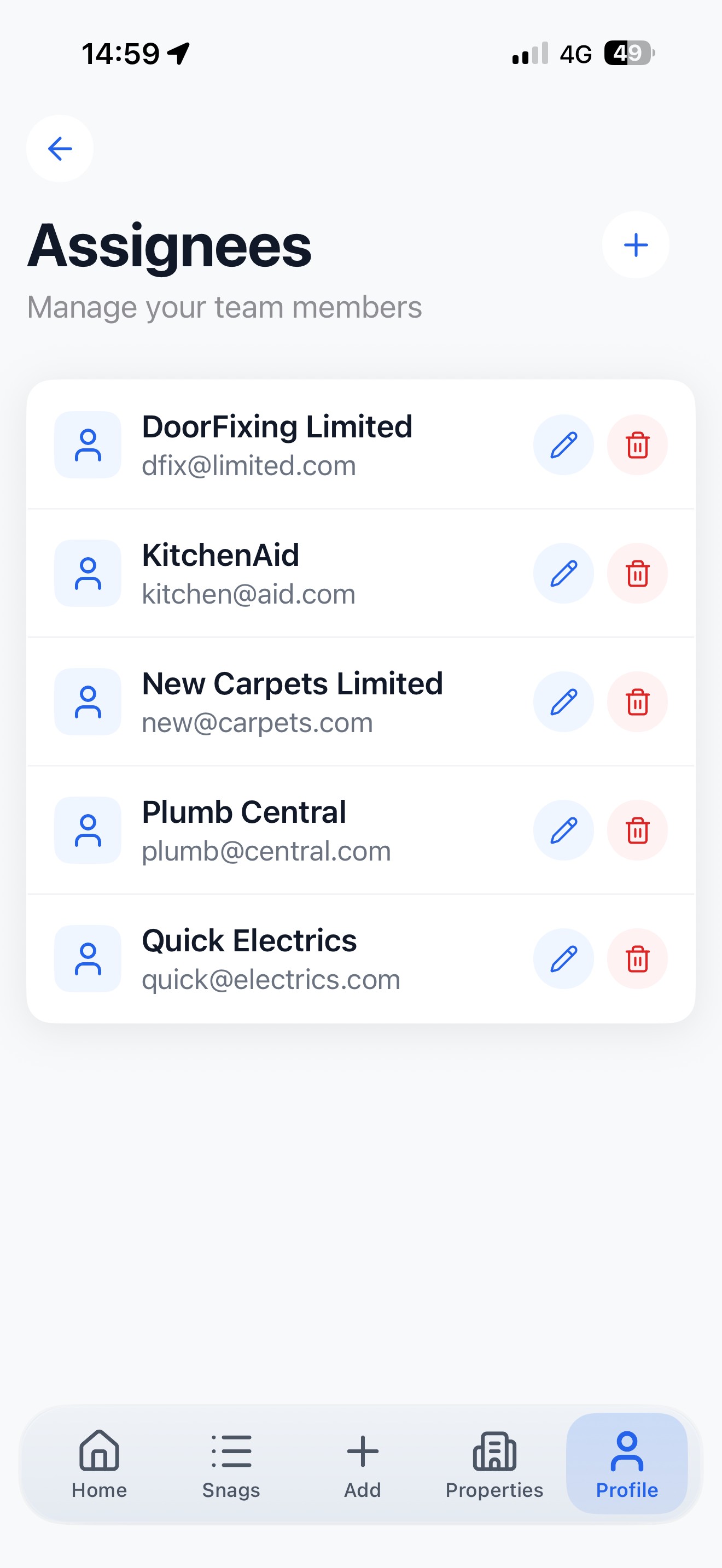
Assignees screen listing team members and trades, opened from Profile - 2
Assign a snag
When you add or edit a snag, tap Assigned To and choose the trade or person. You can do this as you log the snag, or come back later.
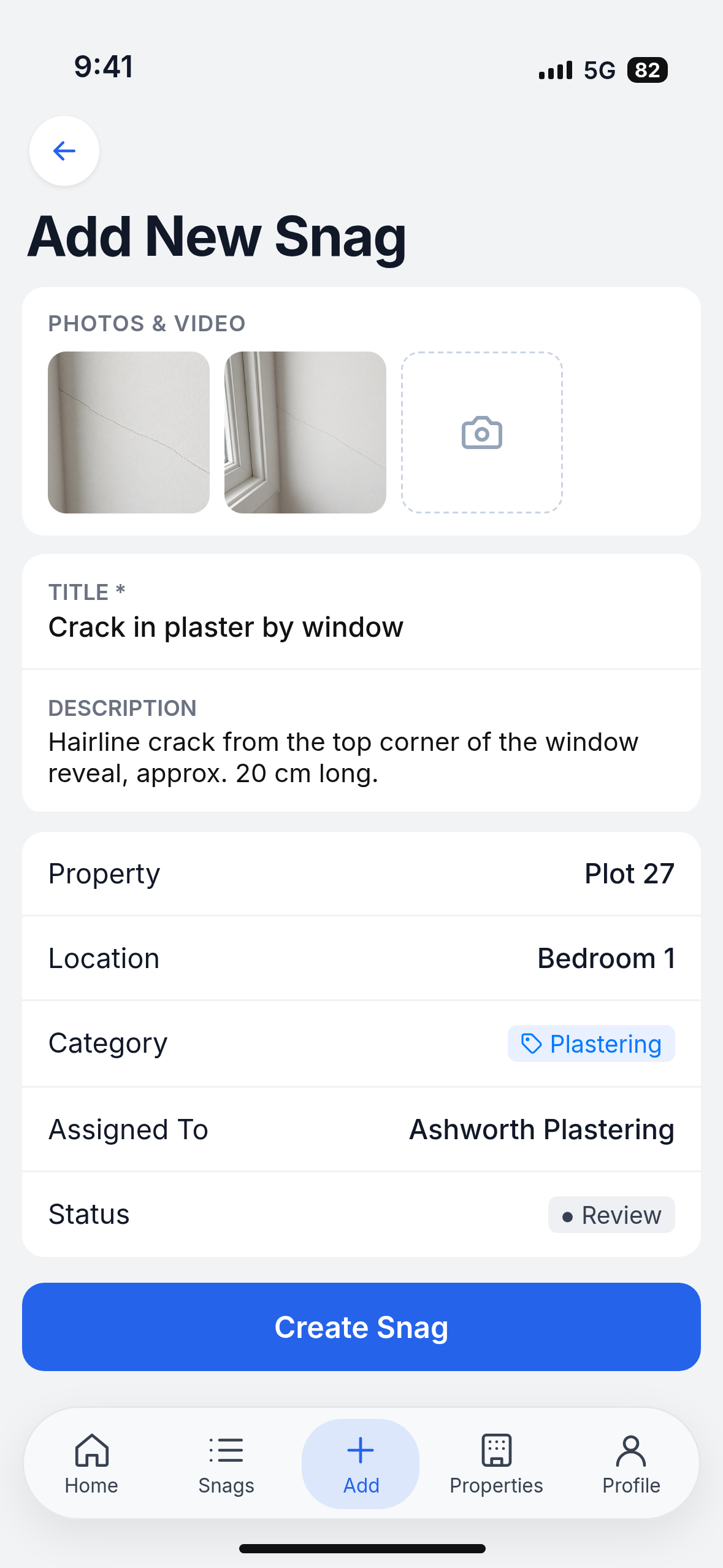
Add New Snag screen with the Assigned To field - 3
Review work by assignee
The snag list shows who each item is assigned to, so you can see what is with each trade.
Related guides
- Upgrade a propertyChoose a plan when you add a property, or upgrade a Free property later from the Properties list.
- Understand snag statusesMove each snag through Review, In Progress and Completed as work happens.
- Alerts, assignees and Custom URLStay on top of snags, assign work, give your team a bespoke login portal, and share links so customers and staff can report in.
Still need help? Contact us
Questions about the app, a purchase or a feature? Email us and we will get back to you.
We aim to reply within a couple of working days.